
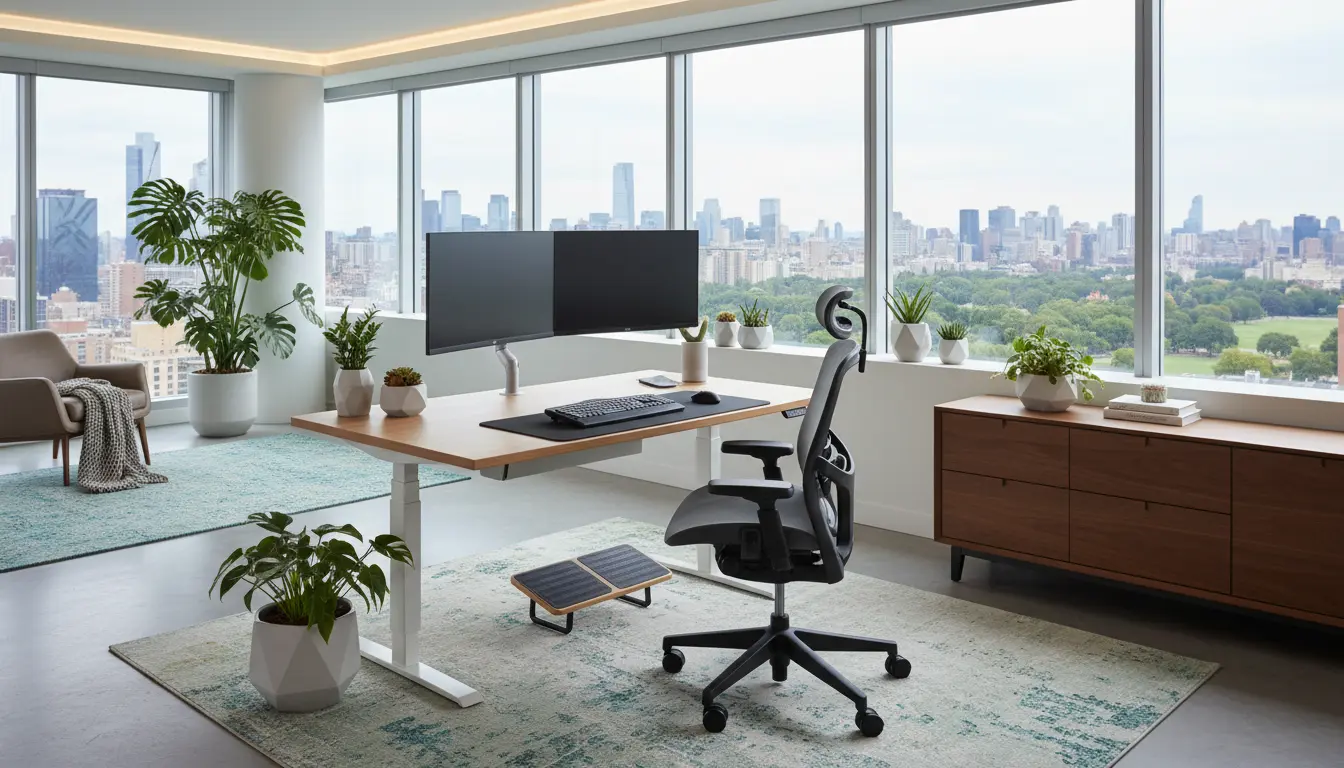
Why Home Office Ergonomics Matters
Good home office ergonomics reduces discomfort and helps you work longer with less fatigue. Small changes in your setup can prevent neck pain, back pain, and repetitive strain injuries.
Applying basic ergonomic principles improves focus and productivity. This guide gives clear, practical steps you can implement today.
Key Elements of Home Office Ergonomics

Your workspace should support a neutral body posture. Focus on four elements: chair, desk, monitor, and input devices.
Chair and Sitting Posture
Choose a chair with adjustable height and lumbar support. Your feet should rest flat on the floor and knees should be level with or slightly below hips.
Keep the back against the chair and avoid slumping. If your chair lacks lumbar support, add a small cushion.
Desk Height and Workspace Layout
Your desk should allow forearms to rest parallel to the floor when typing. If the desk is too high, lower your chair and use a footrest if needed.
Arrange frequently used items within easy reach to avoid repetitive twisting or leaning.
Monitor Position and Lighting
Place the monitor at arm’s length so the top of the screen is at or slightly below eye level. This reduces neck strain from looking up or down.

Use natural light where possible and add task lighting to reduce glare and squinting. Position monitors perpendicular to windows to avoid reflections.
Keyboard and Mouse Setup
Keep the keyboard directly in front of you and the mouse close to avoid reaching. A split or angled keyboard can help maintain a neutral wrist position.
Use a light touch when typing and consider a vertical mouse if you experience wrist discomfort.
Simple Adjustments That Make a Big Difference
- Raise or lower monitor with a stand or books.
- Use a separate keyboard and mouse with a laptop.
- Place a small pillow or lumbar roll behind your lower back.
- Footrest for shorter users to keep feet flat and knees at 90 degrees.
- Document holder to keep reference material at eye level.
Daily Habits to Support Home Office Ergonomics
Ergonomics is not only equipment; habits matter. Break up long sitting periods and move regularly.
- Take a 2–3 minute stretch or walk every 30–45 minutes.
- Perform simple desk stretches: neck rolls, shoulder shrugs, wrist stretches.
- Alternate sitting and standing if you have a height-adjustable desk.
Example Stretch Routine
- Neck tilt: 10 seconds each side.
- Shoulder rolls: 10 forward, 10 backward.
- Wrist flex and extend: 10 reps each hand.
Workers who take short active breaks report less musculoskeletal pain and higher perceived productivity. Even a 2-minute stretch break every 30 minutes can help maintain focus.
Case Study: Small Changes, Big Results
Anna, a freelance graphic designer, had daily neck pain after switching to full-time remote work. She followed a simple plan focused on home office ergonomics.
Changes she made: raised her monitor with a stand, swapped to an ergonomic chair with lumbar support, added a separate keyboard, and set a timer to stretch every 40 minutes.
Within three weeks Anna reported reduced neck pain, fewer breaks due to discomfort, and a 15% increase in billed hours. These small fixes improved comfort and output without major expense.
Budget-Friendly Ergonomic Upgrades
You don’t need to buy expensive equipment to improve ergonomics. Many low-cost adjustments offer immediate benefits.
- Use books or a box to raise your laptop screen to eye level.
- Create a DIY footrest with a sturdy box or a stack of books.
- Replace a hard chair cushion with a padded seat cover for better comfort.
Troubleshooting Common Problems
Persistent Neck or Shoulder Pain
Check monitor height and distance first. If pain continues, review your posture and take more frequent movement breaks.
Wrist Pain or Tingling
Adjust keyboard angle and reduce wrist extension. Consider consulting a health professional if numbness or persistent pain occurs.
Lower Back Discomfort
Ensure lumbar support and that hips are slightly higher than knees. Stand and walk for a few minutes every hour to relieve pressure.
When to See a Professional
If pain persists despite ergonomic adjustments, consult a physical therapist or occupational therapist. They can assess your setup and provide targeted exercises.
For ongoing numbness, weakness, or severe pain, seek medical evaluation to rule out nerve or structural issues.
Quick Checklist: Home Office Ergonomics Setup
- Monitor at eye level and one arm’s length away.
- Chair with lumbar support; feet flat or on a footrest.
- Keyboard and mouse close and at elbow height.
- Regular movement breaks and simple desk stretches.
- Use budget fixes before investing in premium equipment.
Applying these home office ergonomics tips will reduce discomfort and help you work more comfortably and efficiently. Start with small, inexpensive changes and build a setup that supports your daily work.